There are two laser printers available to BIRS participants: an HP Laser printer in the Reading Room in Corbett Hall (5310), and a Xerox Workcentre on the bottom floor of TCPL in room 105.
An easy way to print is to bring your computer to the Reading Room (CH 5310) and plug it into the printer using the USB cable that is attached to the printer. Note: there are 3 cables plugged into the printer: a power cable, an ethernet (network) cable, and the USB cable; look at the back of the printer to find the USB cable. People often plug the other end of the USB cable into the iMac beside the printer, but that is redundant because the iMac prints over the network. Unplug it from the iMac if you find it plugged in, and plug it into your laptop.
Comparably easy is to bring a USB stick to the Xerox Workcentre in TCPL 105, and plug it into the machine. Beside each printer is an Internet-connected computer that you can use to print files from.
Specific instructions for printing from personal computers over the network follow.
Quick Links:
- Printing from an Apple Macintosh computer
- Printing from a PC running Microsoft Windows
- Printing from a computer running Linux
Printing From Your Mac Laptop
To print from your Mac while at BIRS, first make sure that you are connected to the network. A good way to test this is to visit a website that changes frequently, such as Google News. If you can browse Google News and see new content, then you know that you have network access.
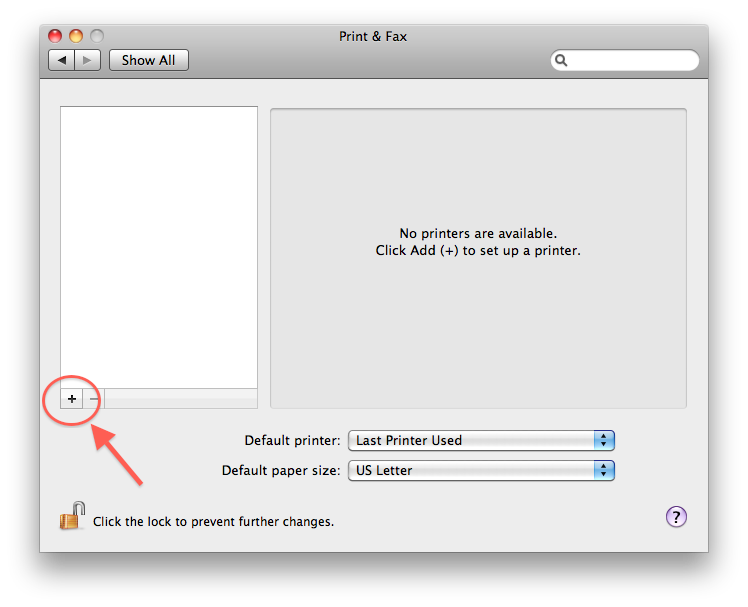
To add a printer, click on the Apple logo in the top-left of your screen, then choose System Preferences. Click the Print & Fax icon on the third row. Then click the "+" button, as indicated in the image below.
If you are using the wired ethernet network, with a network cable, click on the Default tab, as indicated in the image below. Wired network connections are available via the odd-numbered network ports in the Corbett Hall bedrooms, in the Reading Room (CH5310), and in TCPL 105.
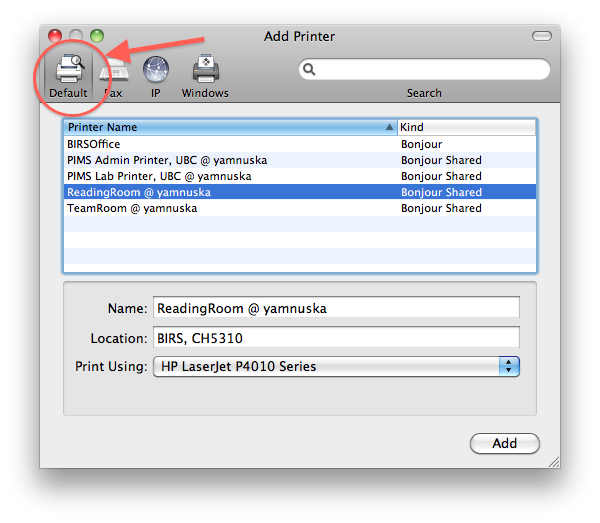
To add the printer in Corbett Hall, choose "ReadingRoom..." from the list, and click the Add button. To add the printer in TCPL (actually a Xerox WorkCentre now), choose "TCPL105..." from the list, and click the add button. If that worked, you should now be ready to print, and you can stop reading here.
If you are on the wireless network, you will not see the list of printers in the Default tab, as per above. In this case, the printer must be configured manually. Click the IP tab, as shown in the image below.
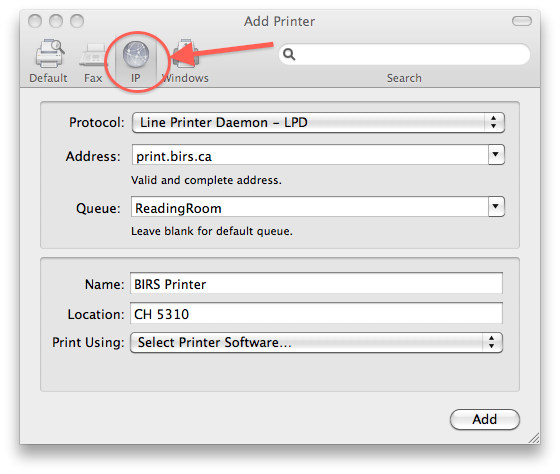
From the Protocol menu, choose "Line Printer Daemon - LPD", as shown in the above image.
In the Address field, type "print.birs.ca", as shown in the above image.
The Queue field will vary depending on which printer you would like to configure, as per the following paragraphs.
For the printer in Corbett Hall 5310
In the Queue field, type "ReadingRoom" (case sensitive).
From the "Print Using" menu, choose "Select Printer Software". A list of printer software will pop-up. Type "p4010" into the search field, as shown in the image below.
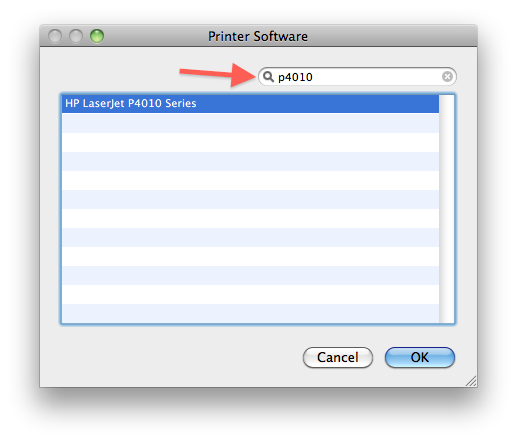
Select "HP LaserJet P4010 Series", then click the OK button. Continue reading below, from '"Installable Options" window.'
For the printer in TCPL 105
In the Queue field, type "TCPL105". (capital letters, no spaces)
In the "Print Using" drop-down menu, choose the Generic Postscript Printer, and check off the "Duplex Unit" option when prompted, to allow double-sided printing. If you have every printer driver installed, you could alternatively select specific printer software for a Xerox 5845.
You should now be ready to print from your Mac!
Printing From Your Windows Laptop
The easiest thing to do is to bring your computer to the Reading Room (CH 5310) and plug it into the printer using the USB cable that is attached to the printer. The Xerox machine in TCPL 105 has a USB stick on it that you can use to transfer files to it for printing.
If you are savvy and want to print over the network, here is the basic information you need:
- The Server Name is: print.birs.ca
- For Corbett Hall 5310, the print queue name is "ReadingRoom", (not readingroom) and the printer model is "HP LaserJet p4015" (or just p4010 series).
- For TCPL 105, the print queue name is "TCPL105" (upper case, not tcpl105 & there is no space between TCPL and 105) and the printer is a "Xerox Workcentre 5845" at this network address: 10.15.223.17. The best thing to do is download the latest drivers from the Xerox website.
- PCL and PS versions of the drivers both work. PS is better.
Instructions for Windows - CH5310 Printer
- First make sure that you are connected to the network. Browse Google News or another dynamic website to test whether you are connected.
- Open Devices and Printers by clicking the Start button , and then, on the Start menu, clicking Devices and Printers. The location of this feature may vary between versions of Windows.
- Click Add a printer.
- In the Add Printer wizard, click "Add a network, wireless or Bluetooth printer."
- In the list of available printers, select ReadingRoom (for the printer in Corbett Hall 5310), and then click Next.
If you do not see a list of printers, click "The Printer ... wasn't listed" button.- Choose ‘Select a shared printer by name’
- To print to the printer in Corbett Hall 5310, type in: \\print.birs.ca\ReadingRoom (a list may appear after you type \\print.birs.ca\ -- if that happens, select ReadingRoom from the list).
- If prompted, install the printer driver on your computer by clicking Install driver. Select "HP" from the list of manufacturers on the left side, then choose the printer model from the list on the right side. The printer model in Corbett Hall is "HP LaserJet p4015" (or just p4010 series).
- Complete the additional steps in the printer installation wizard, and then click Finish.
Instructions for Windows - TCPL105 Printer
In TCPL, the printer is a "Xerox Workcentre 5845", but any generic PostScript (PS) driver should work fine.
- If you wish to print to the printer in TCPL 105, first download and install the Xerox Workcentre 5845 drivers from this website. The drivers that come with some versions of Windows for "Xerox 5800 class" do not work.
- During the installation of the program from Xerox, it will search the local network for Xerox printers. If you are physically in the TCPL building, it should find our Xerox WorkCentre 5845, which is named "TCPL105". If you see it listed, click on it, and click Next, and follow the prompts selecting the default values.
- If the printer is not automatically discovered (which is likely if you are in Corbett Hall), then select the option to manually specify the network address: 10.15.223.17.
- The printer can also be added in the Add (Network) Printer dialogue, using this address: \\print.birs.ca\TCPL105 (a list may appear after you type \\print.birs.ca\ -- if that happens, select TCPL105 from the list).
Printing From Your Linux Laptop
First make sure that you are connected to the network. Browse Google News or another dynamic website to test.
The print server name is print.birs.ca, and the print queue names are ReadingRoom (for the printer in CH5310) and TCPL105 (for the Xerox in TCPL 105). Use the LPD protocol. CUPS appears to be case-sensitive, so do not use "tcpl105"; the queue name is TCPL105.
Some people have had difficulty printing from Linux to the print server, so you may find that a direct connection to the printer via HP Socket is a better option for you. This option requires that you are plugged into the network with an ethernet cable; it will not work from wifi. For the TCPL printer, use socket://10.15.223.17. For the Corbett Hall printer, use socket://10.15.223.15.